
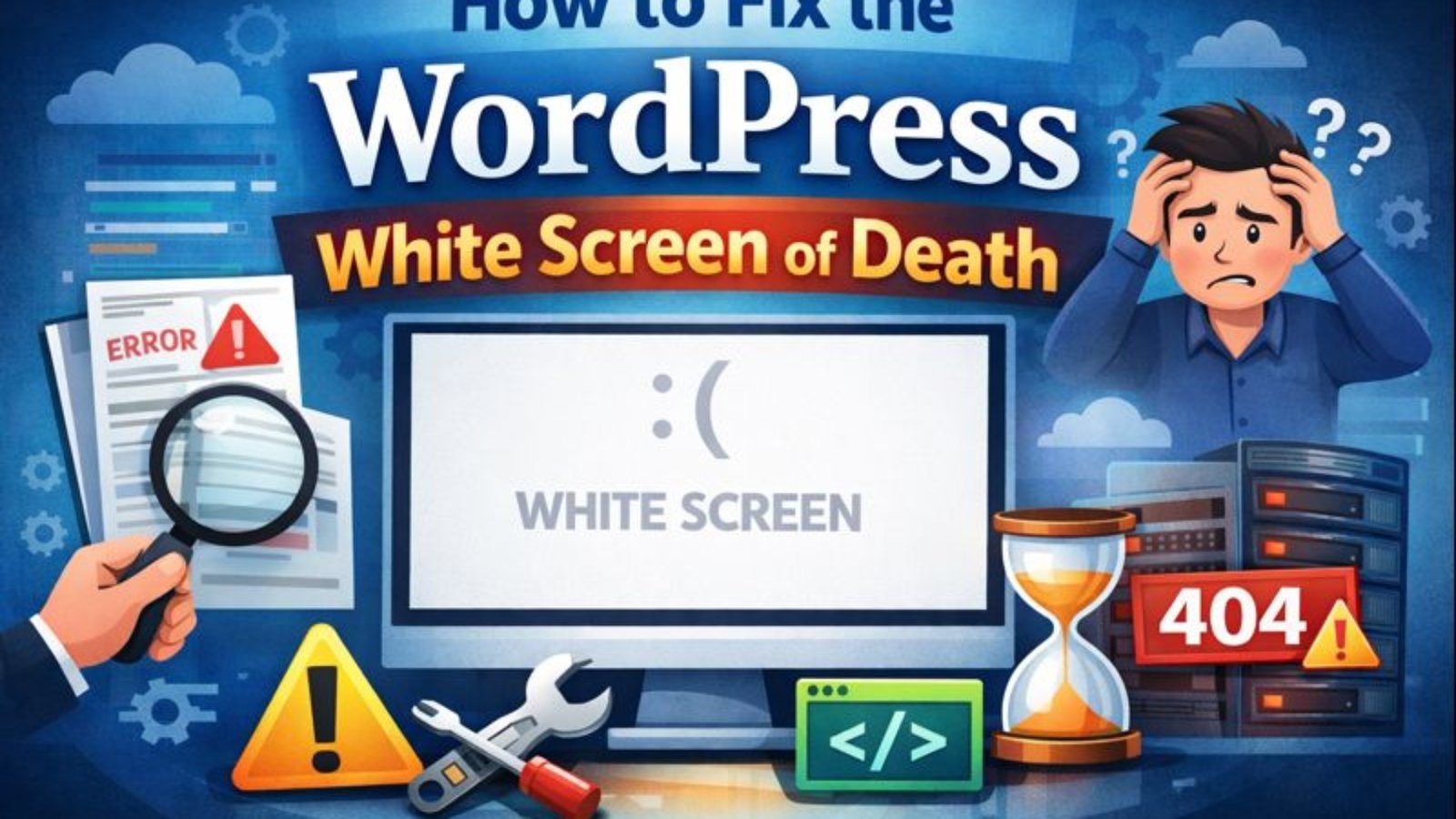
WordPress white screen of death

How to Fix WordPress White Screen of Death – Easy 2025 Guide

How to Fix the WordPress White Screen of Death (2025 Guide)

One moment your WordPress site is working perfectly…
Next moment — a blank white screen appears 😟

No error message.
No warning.
Just a white screen of death (WSOD).

Don’t panic. This is one of the most common WordPress issues, and the good news is: it’s 100% fixable.
In this guide, I’ll walk you through simple, real solutions that work in 2025, even if you’re not a developer.

🔍 What Is the WordPress White Screen of Death?

The WordPress white screen of death happens when your site crashes silently due to:

  • Plugin conflicts
  • Theme issues
  • PHP memory limits
  • Fatal errors
  • Corrupted files

Sometimes it affects the entire site, sometimes only wp-admin.

1️⃣ Use a Strong Admin Username & Password

This helps reveal the real error behind the white screen.
Open wp-config.php and add:

define(‘WP_DEBUG’, true);
define(‘WP_DEBUG_LOG’, true);
define(‘WP_DEBUG_DISPLAY’, true);

Now reload your site — you’ll often see the exact error causing the issue.

2️⃣ Install a Trusted WordPress Security Plugin

Plugin conflicts cause over 70% of WSOD cases.

How to disable plugins:

  1. Access your site via FTP or File Manager
  2. Go to /wp-content/
  3. Rename the plugins folder to plugins-old

If the site works again → one plugin is the problem.
Rename the folder back and activate plugins one by one.

✅ Step 3: Switch to a Default Theme

Your theme may be incompatible or broken.
Rename your active theme folder:

/wp-content/themes/your-theme-name

WordPress will automatically switch to a default theme like Twenty Twenty-Four.

If the site loads → your theme needs fixing or updating.

✅ Step 4: Increase PHP Memory Limit

Low memory often causes the WordPress white screen of death.
Add this to wp-config.php:

For some hosts, you may also need to increase memory via hosting control panel.

✅ Step 5: Check for Corrupted Core Files

If core WordPress files are damaged:

  • Download a fresh WordPress copy
  • Replace only these folders:
    • /wp-admin
    • /wp-includes

⚠️ Do NOT touch wp-content

✅ Step 6: Clear Cache (Very Important)

If you use caching plugins or hosting cache:

  • Clear plugin cache (WP Rocket, W3 Total Cache, LiteSpeed)
  • Clear hosting cache (Cloudflare, SiteGround, Hostinger, etc.)

Cached errors often cause blank pages.

✅ Step 7: Check File Permissions

Incorrect permissions can block WordPress from loading.

Recommended:

  • Files: 644
  • Folders: 755

Avoid 777 — it’s unsafe.

🧠 Bonus Tip: Check Error Logs

Most hosting panels provide error logs.

Look for:

  • Fatal error
  • Allowed memory size exhausted
  • Call to undefined function

These logs often point directly to the issue.

🔗 Related Guides

👉 How to Secure Your WordPress Site From Hackers
👉 Top WordPress Speed Optimization Tips for 2025

✅ Final Thoughts

The WordPress white screen of death looks scary — but it’s usually caused by simple issues.

Start with:

  1. Disabling plugins
  2. Switching themes
  3. Increasing memory

In most cases, your site will be back in minutes.

💬 Still stuck?
Drop a comment or contact me — I’ve fixed this issue hundreds of times for clients.
wordpress_upload_limit_error

How to Increase Maximum Upload File Size in WordPress (3 Proven Methods)

How to Increase Maximum Upload File Size in WordPress (3 Proven Methods)

Are you getting a frustrating error like:

“The uploaded file exceeds the upload_max_filesize directive in php.ini”?

You’re not alone. Many WordPress users encounter this issue when uploading large media files, plugins, or themes. In this post, you’ll learn three proven methods to increase the maximum upload file size in WordPress.

Let’s fix this — fast and easy!

🔍 What Causes the Upload Size Limit?

WordPress depends on your server’s PHP configuration to determine how large a file you can upload. By default, most hosting providers set this limit to something like:

  • 2MB
  • 8MB
  • 64MB

When you try to upload a file that’s too large, WordPress shows an error and blocks the upload.

You might face this when:

  • Uploading a high-res image or video
  • Installing a large theme or plugin
  • Importing demo content

✅ How to Check Your Current Upload Limit

To find your current limit:

  1. Go to Media > Add New in your WordPress dashboard.
  2. Look below the upload box. You’ll see something like:

Maximum upload file size: 2 MB

If that’s too low for your needs, let’s increase it

🔧 Method 1: Modify .htaccess (Recommended for Shared Hosting)

If your site uses Apache (most shared hosts), you can edit the .htaccess file in the root directory.

Add the following lines:

php_value upload_max_filesize 128M
php_value post_max_size 128M
php_value max_execution_time 300
php_value max_input_time 300

📌 Tip: Always back up your .htaccess file before making any changes.

🧠 Method 2: Update php.ini (If Your Hosting Allows)

On some servers, you have access to the php.ini file. Add or update these lines:

upload_max_filesize = 128M
post_max_size = 128M
max_execution_time = 300

Restart the server or use .user.ini if you can’t modify php.ini directly.

🧩 Method 3: Use a Plugin (No Code Needed)

Don’t want to touch any files? Use a plugin like:

👉 Increase Maximum Upload File Size – WordPress Plugin

Once installed, go to the plugin settings and select your preferred file size. It’s beginner-friendly and quick.

💡 Still Not Working?

Some hosting providers enforce limits at the server level. If none of the above works, contact your host and ask them to:

  • Increase upload_max_filesize
  • Increase post_max_size
  • Increase memory_limit

Most hosting companies will update these settings within minutes upon request.

🔄 Final Thoughts

Increasing your WordPress upload size limit is essential if you’re handling large themes, plugins, or media files. Whether you edit .htaccess, tweak php.ini, or use a plugin — the process takes just a few minutes.

Now you won’t be stuck staring at frustrating upload errors anymore.

👉 Also Read: How to Fix “The Link You Followed Has Expired” in WordPress


Got any questions or still facing upload issues? Drop a comment below — I’d love to help!