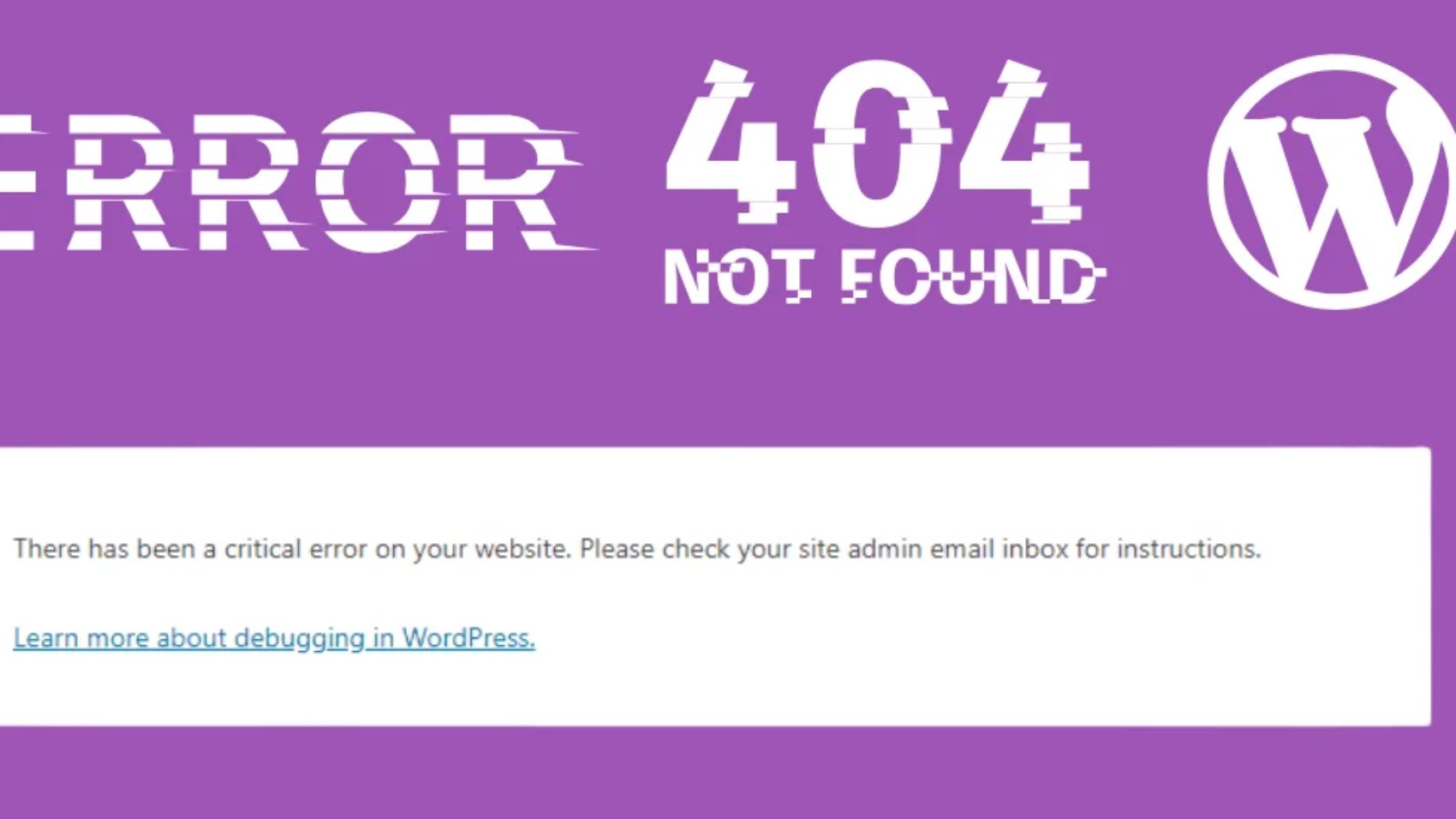
WordPress white screen of death

How to Fix WordPress White Screen of Death – Easy 2025 Guide

How to Fix the WordPress White Screen of Death (2025 Guide)

One moment your WordPress site is working perfectly…
Next moment — a blank white screen appears 😟

No error message.
No warning.
Just a white screen of death (WSOD).

Don’t panic. This is one of the most common WordPress issues, and the good news is: it’s 100% fixable.
In this guide, I’ll walk you through simple, real solutions that work in 2025, even if you’re not a developer.

🔍 What Is the WordPress White Screen of Death?

The WordPress white screen of death happens when your site crashes silently due to:

  • Plugin conflicts
  • Theme issues
  • PHP memory limits
  • Fatal errors
  • Corrupted files

Sometimes it affects the entire site, sometimes only wp-admin.

1️⃣ Use a Strong Admin Username & Password

This helps reveal the real error behind the white screen.
Open wp-config.php and add:

define(‘WP_DEBUG’, true);
define(‘WP_DEBUG_LOG’, true);
define(‘WP_DEBUG_DISPLAY’, true);

Now reload your site — you’ll often see the exact error causing the issue.

2️⃣ Install a Trusted WordPress Security Plugin

Plugin conflicts cause over 70% of WSOD cases.

How to disable plugins:

  1. Access your site via FTP or File Manager
  2. Go to /wp-content/
  3. Rename the plugins folder to plugins-old

If the site works again → one plugin is the problem.
Rename the folder back and activate plugins one by one.

✅ Step 3: Switch to a Default Theme

Your theme may be incompatible or broken.
Rename your active theme folder:

/wp-content/themes/your-theme-name

WordPress will automatically switch to a default theme like Twenty Twenty-Four.

If the site loads → your theme needs fixing or updating.

✅ Step 4: Increase PHP Memory Limit

Low memory often causes the WordPress white screen of death.
Add this to wp-config.php:

For some hosts, you may also need to increase memory via hosting control panel.

✅ Step 5: Check for Corrupted Core Files

If core WordPress files are damaged:

  • Download a fresh WordPress copy
  • Replace only these folders:
    • /wp-admin
    • /wp-includes

⚠️ Do NOT touch wp-content

✅ Step 6: Clear Cache (Very Important)

If you use caching plugins or hosting cache:

  • Clear plugin cache (WP Rocket, W3 Total Cache, LiteSpeed)
  • Clear hosting cache (Cloudflare, SiteGround, Hostinger, etc.)

Cached errors often cause blank pages.

✅ Step 7: Check File Permissions

Incorrect permissions can block WordPress from loading.

Recommended:

  • Files: 644
  • Folders: 755

Avoid 777 — it’s unsafe.

🧠 Bonus Tip: Check Error Logs

Most hosting panels provide error logs.

Look for:

  • Fatal error
  • Allowed memory size exhausted
  • Call to undefined function

These logs often point directly to the issue.

🔗 Related Guides

👉 How to Secure Your WordPress Site From Hackers
👉 Top WordPress Speed Optimization Tips for 2025

✅ Final Thoughts

The WordPress white screen of death looks scary — but it’s usually caused by simple issues.

Start with:

  1. Disabling plugins
  2. Switching themes
  3. Increasing memory

In most cases, your site will be back in minutes.

💬 Still stuck?
Drop a comment or contact me — I’ve fixed this issue hundreds of times for clients.

speed up WordPress

How to Speed Up Your WordPress Website (Beginner-Friendly Guide for 2025)

A slow website doesn’t just frustrate users — it also affects your Google ranking, bounce rate, and AdSense revenue.

If your WordPress site takes more than 3 seconds to load, it’s time to take action.

In this guide, you’ll learn how to speed up your WordPress website using beginner-friendly steps that actually work in 2025

🚀 Why Speed Matters for WordPress

  • Better SEO – Google ranks fast websites higher
  • Higher conversions – Faster pages = more leads/sales
  • Improved user experience – Visitors stay longer
  • Better AdSense performance – Slow sites earn less revenue

✅ Step 1: Test Your Website Speed

Before you start, check how your site performs.

Use tools like:

Check:

  • Load time
  • Core Web Vitals
  • Largest Contentful Paint (LCP)
  • Time to First Byte (TTFB)

🧩 Step 2: Use a Lightweight Theme

Heavy themes slow down your site. Choose fast, minimal themes like:

  • GeneratePress
  • Astra
  • Neve

These themes are optimized for speed and work great with page builders.

🔧 Step 3: Install a Caching Plugin

Caching reduces server load and speeds up page delivery.

Top plugins:

  • WP Rocket (premium)
  • LiteSpeed Cache (free if on LiteSpeed server)
  • W3 Total Cache
  • WP Super Cache

Enable:

  • Page caching
  • Browser caching
  • GZIP compression

🖼️ Step 4: Optimize Images

Unoptimized images are a common speed killer.

Solutions:

  • Use WebP format (next-gen image format)
  • Compress using TinyPNG, ShortPixel, or Smush
  • Set image dimensions in your theme

💾 Step 5: Use a Content Delivery Network (CDN)

CDNs deliver your content from servers closest to your users.

Top CDNs for WordPress:

  • Cloudflare (free)
  • BunnyCDN (affordable)
  • StackPath

A CDN can drastically improve global page load speed.

🧹 Step 6: Minify CSS, JavaScript & HTML

Minification removes unnecessary spaces and comments in your code.

Enable via:

  • Your caching plugin
  • Plugins like Autoptimize
  • Cloudflare (under Speed settings)

🧠 Step 7: Limit Plugins & Scripts

Too many plugins = slow website.

  • Delete unused plugins
  • Avoid heavy plugins (e.g., sliders, social feeds)
  • Use plugins with active updates & good reviews

🔄 Step 8: Keep Everything Updated

  • WordPress Core
  • Themes
  • Plugins
  • PHP version (use 8.0 or higher)

Outdated software can slow down your site and cause compatibility issues.

🔗 Related Posts

✅ Final Thoughts

Speeding up your WordPress site isn’t hard — it just takes a few smart changes. Start with caching, image optimization, and a fast theme, and you’ll see immediate results.

Faster websites = more traffic, better SEO, and higher earnings. 💰

Have questions or want me to review your site speed? Drop a comment or reach out — I’d be happy to help!

How to Fix the WordPress Critical Error (Step-by-Step Guide for 2025)

How to Fix the WordPress Critical Error (Step-by-Step Guide for 2025)

Facing the “There has been a critical error on this website” message? Don’t panic. Here’s how to fix it easily and get your website back online.

🧠 Why This Blog Post?

  • Highly searched keyword: WordPress critical error fix
  • Helps establish your expertise in solving real user problems
  • Good chance to rank if optimized we

If you’ve landed on this page, your WordPress site probably just crashed with a “There has been a critical error on your website” message.
Don’t worry — this is one of the most common WordPress problems, and you can fix it even without being a developer

In this guide, I’ll walk you through the exact steps to fix the WordPress critical error and bring your site back to life.

What Causes the WordPress Critical Error?

The critical error is usually caused by:

  • A faulty plugin or theme
  • PHP version conflicts
  • Memory limit exhaustion
  • File corruption or malware
  • Database connection issues

🛠️ Step-by-Step Solution

✅ Step 1: Enable Debug Mode

Add this to your wp-config.php file:

define( ‘WP_DEBUG’, true );
define( ‘WP_DEBUG_LOG’, true );

This helps you track down what caused the error.

✅ Step 2: Access Site via FTP or File Manager

Login using cPanel > File Manager or via an FTP client like FileZilla.

✅ Step 3: Deactivate All Plugins

Navigate to /wp-content/plugins/ and rename the folder to plugins_old.
Now reload your site. If it works, a plugin caused the issue.
Rename the folder back and reactivate one-by-one

✅ Step 4: Switch to Default Theme

Rename your active theme folder (e.g., astraastra_old) to force WordPress to load a default theme like Twenty Twenty-Four.

✅ Step 5: Increase PHP Memory Limit

In wp-config.php, add:

define( ‘WP_MEMORY_LIMIT’, ‘256M’ );

✅ Step 6: Check for Core File Corruption

Re-upload fresh WordPress core files (except wp-content and wp-config.php) from wordpress.org.

✅ Step 7: Contact Hosting Support

If the issue persists, your hosting provider may help you restore your site or check server errors.

📈 Bonus: Prevent Future Critical Errors

  • Use a reliable theme and plugins
  • Keep WordPress, plugins, and themes updated
  • Install a backup plugin (like UpdraftPlus)
  • Enable server-side malware scanning
  • Avoid editing theme files directly

✅ Final Thoughts

The WordPress critical error can feel like a nightmare, but with the right steps, it’s totally fixable. If you’re still stuck or don’t want to risk breaking more things — Contact me now and I’ll personally help you fix it.

👉 Also Read: How to Fix “How to Increase Maximum Upload File Size in WordPress (3 Proven Methods)” in WordPress.